

System and settings
What the dongle reads from your system, and what you tell GridZeno yourself: the panels, the prices, the equipment and which notifications you want. Each has its own page under Settings and Integrations in the menu.
System
What the dongle has read from your inverter and your battery.
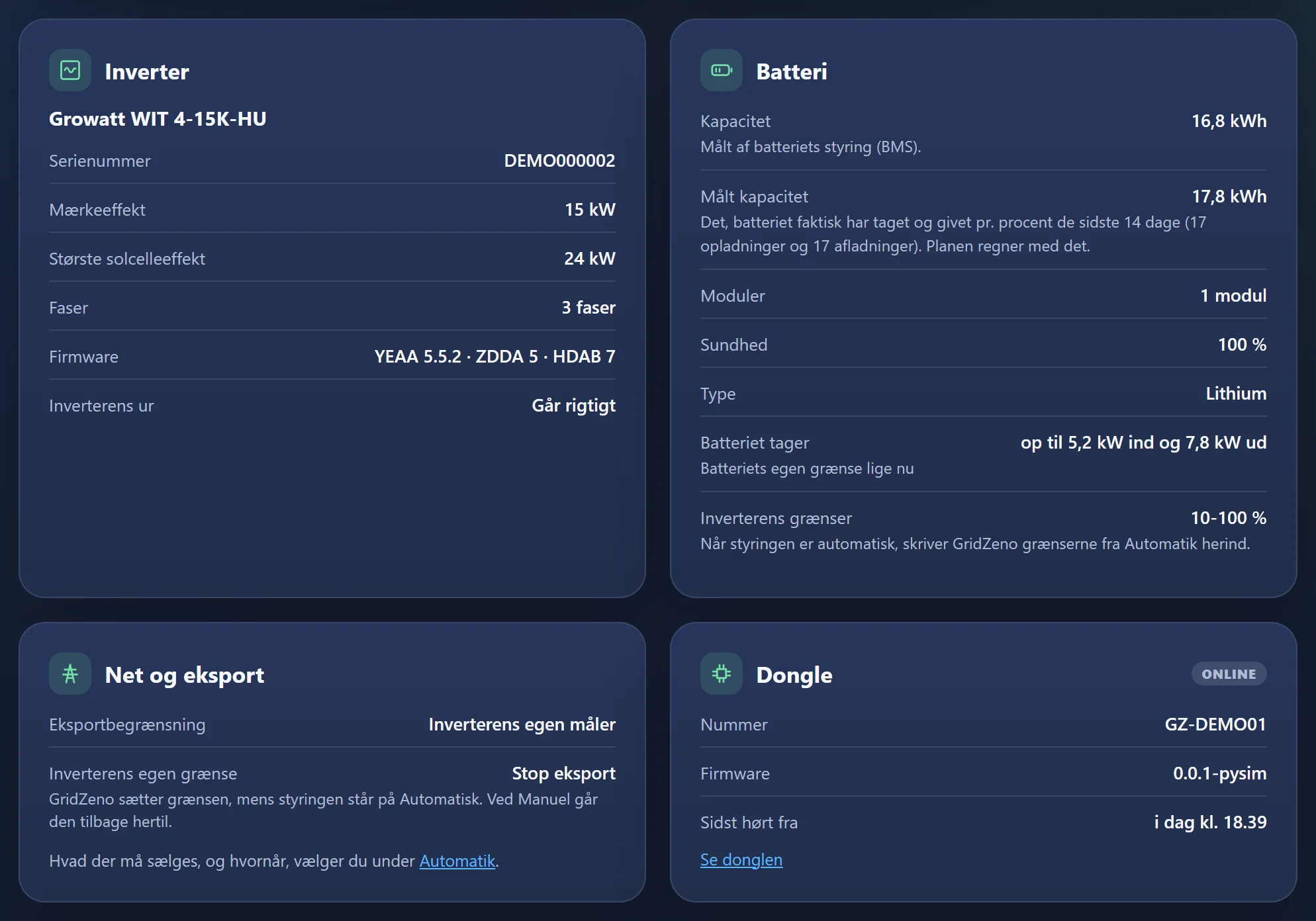
- Inverter
- Model, serial number, rated power, phases, firmware, and whether the inverter's clock is right.
- Battery
- The capacity as the battery management system (BMS) measures it, the measured capacity from the last 14 days of charging and discharging, modules, health and the limits in the inverter. The plan calculates with the measured capacity.
- Grid and export
- Whether the inverter limits selling to the grid, and what its own limit is.
- Dongle
- Whether the dongle is online, its number and firmware, and when it last reported in.
- 1Read the top of the page
When the dongle last read the inverter. If the dongle can't read the inverter, or the inverter itself reports a fault or warning, it says so just below.
- 2Press Read again
When you have changed something on the system, for example added another battery module. The dongle reads within a couple of minutes, and it says Read again, or that there's a change.
The dongle also reads the system by itself every 6 hours and every time it starts.
Changes to the system
What the dongle has found changed between two readings.
Under Changes to the system you'll find, for example, a different inverter, a new rated power, a battery that has been added or removed, more or fewer modules, a changed capacity and new inverter firmware, and when the panel check has optimised your panels. If it's something the plan calculates with, the plan is redone straight away, and you get a notification. You can turn off the Change to the system notification under Notifications.
Location and panels
The more precise, the better the solar forecast. Each roof surface with panels is a string.
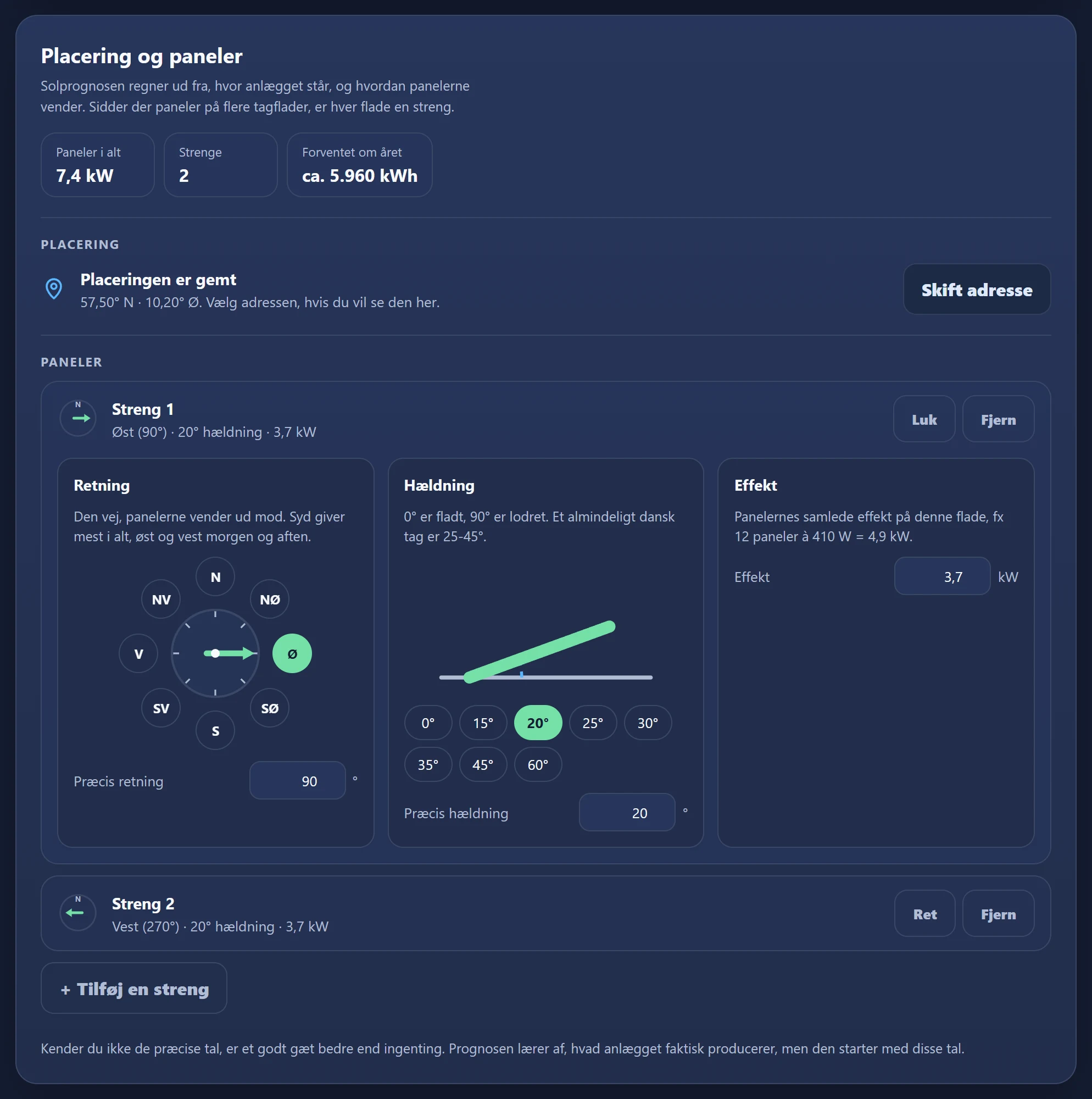
- 1Press Choose address or Change address
Enter the street name, number and town, and choose the address from the list that appears after 3 characters.
- 2Press Edit next to a string
The string then opens.
- 3Choose Orientation
Press the point of the compass, or enter the degrees under Exact orientation. South is 180°, east 90° and west 270°.
- 4Choose Tilt
0° is flat, 90° is vertical. An ordinary Danish roof is 25-45°. Press an angle, or enter the exact one.
- 5Enter Power
The total power of the panels on that surface, for example 12 panels of 410 W = 4.9 kW.
- 6More roof surfaces
Press + Add a string for each surface. Remove deletes a string.
- 7Press Save
The bar with Save and Undo appears when you have changed something. The next forecast calculates with the new figures, and Expected per year is recalculated.
If you don't know the exact figures, a good guess is better than nothing. The forecast learns from what the system actually produces, and the panel check can correct the figures.
Panel check
GridZeno compares each string's production with the sun that actually shone, and checks whether orientation and tilt match.
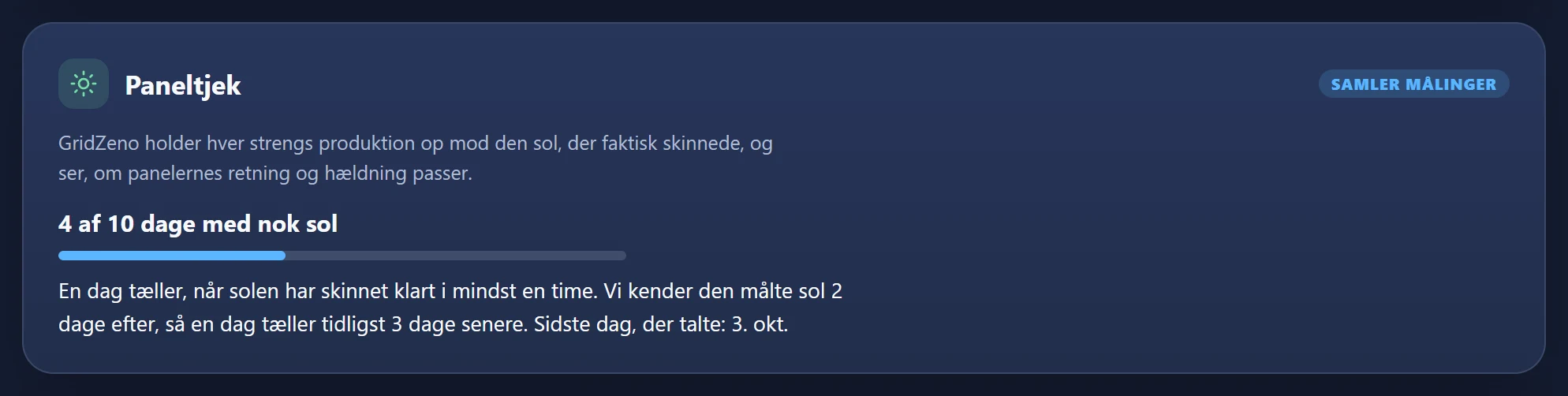
The check starts by itself when the dongle sends the production per string. It counts days with clear sun for at least an hour until there are 10, and the measured sun is only known 2 days later, so a day counts 3 days later at the earliest. In winter it can take until spring.
- Matches
- The panels match the measurements. Nothing is changed.
- Optimised
- GridZeno has corrected the figures itself, and the forecast runs on them. You get a notification, and the figures you entered are shown with each string.
- Suggestion or Uncertain
- The measurements point to other figures. It's up to you: press Use the optimised figures, if you want to use them.
- Take a look
- The measurements don't match your panels, and nothing has been changed. Check the figures under Location and panels.
- 1To go back, press Go back to the entered figures
On the Panel check card or at the top of Location and panels. GridZeno then doesn't optimise by itself again.
- 2If you have moved or replaced panels, press Check the panels again
The check starts over and collects 10 days again.
If a string produces as if it faces a different way than it does, it's often shade, for example from a tree in the morning. The forecast is then also more accurate with the optimised figures.
Dongle
Whether the dongle is running, and what you can do if it isn't.
- Status at the top
- The dongle is running, is running with a warning (for example weak Wi-Fi or too low a voltage), can't read the inverter, or hasn't reported in. If something is wrong, there's a Write to support button with the dongle's number in the message.
- How to get the dongle back
- Only shown when the dongle is offline: check the power, cut the power for 10 seconds, and what to do with a new router or a new Wi-Fi password.
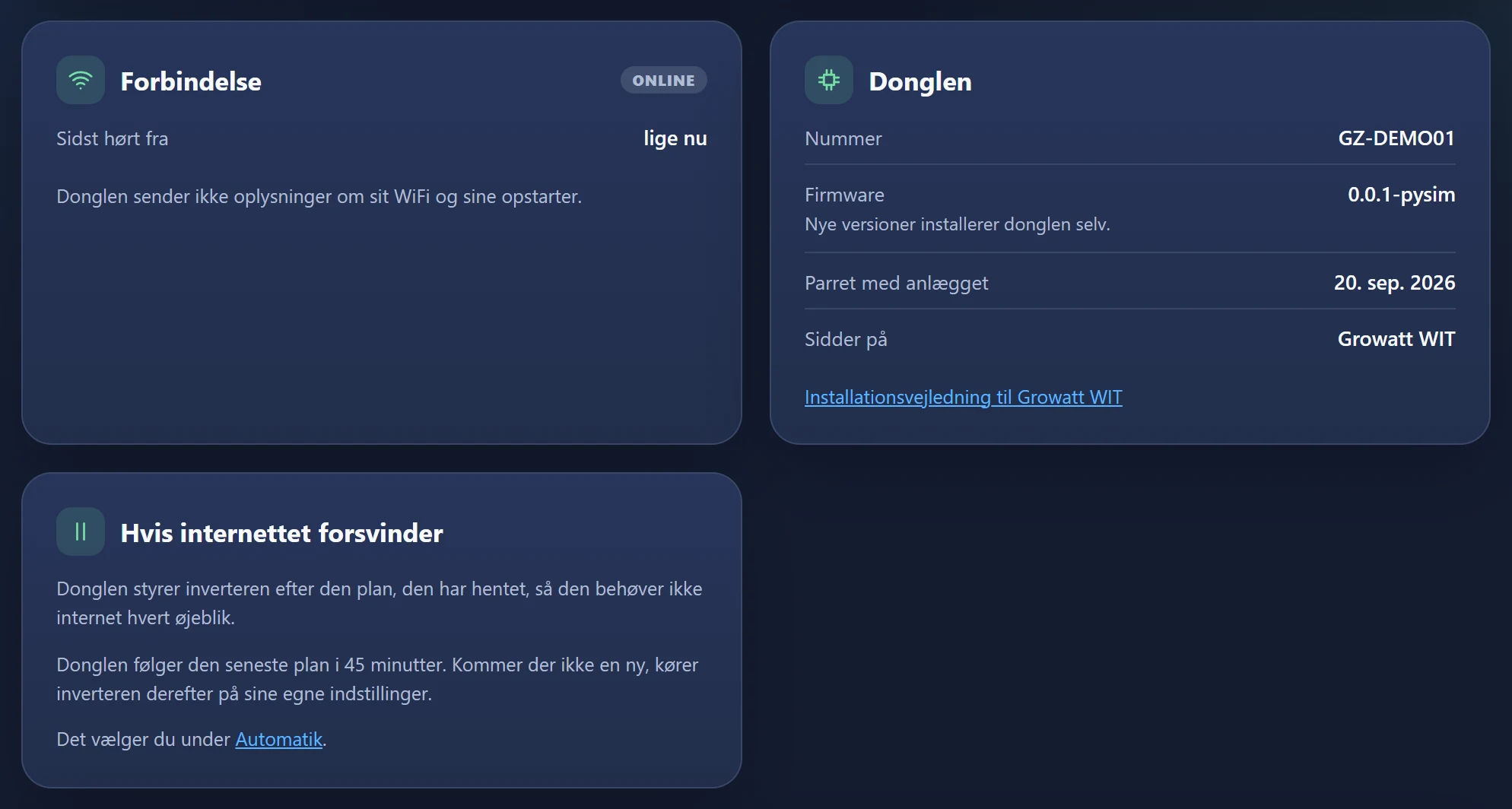
- Connection
- Last heard from, Wi-Fi signal and how often the Wi-Fi has dropped out.
- Power and start-up
- How long it has been running, start-ups in the last 24 hours and why it last started.
- The dongle
- Number, firmware and an installation guide for your inverter. The dongle installs new versions by itself.
- If the internet goes down
- What the dongle does without internet, according to your choice under Automatic.
- The dongle's own page
- Press Open the dongle's page from a phone or computer on the same network, and log in with the dongle's number.
- 1Switch to a new dongle
Under Change or remove the dongle you press Remove the dongle and confirm.
- 2Pair the new one
Enter the new dongle's number in Pair your dongle, and press Pair the dongle. Your subscription continues in the meantime, but until a dongle is paired, GridZeno gets no measurements, and the system isn't controlled.
Grid company and electricity contract
What your buying and selling price is made of. Everything is saved as you choose.
- 1Choose Price area
West Denmark (DK1) for Jutland and Funen, East Denmark (DK2) for Zealand, the islands and Bornholm.
- 2Choose Grid company
The company that owns the cables to your house. It's on your electricity bill. Without it, GridZeno only shows the spot price.
- 3Choose your Electricity contract
Press Choose from the list, search for your supplier, and choose the contract. If it isn't there, or the figure has changed, press Enter it yourself and enter the markup per kWh in øre, with or without VAT, as it says on your bill.
- 4Choose Buyer of surplus power
The one who pays you for the power you send out. Choose from the list, or enter the buyer's deduction per kWh yourself. If the buyer adds something on top of the spot price, enter it with a minus in front.
- 5Check Your price right now
At the bottom is the price for the current quarter hour, split into spot price, tariffs, duty, markup and VAT, both when you buy and when you sell.
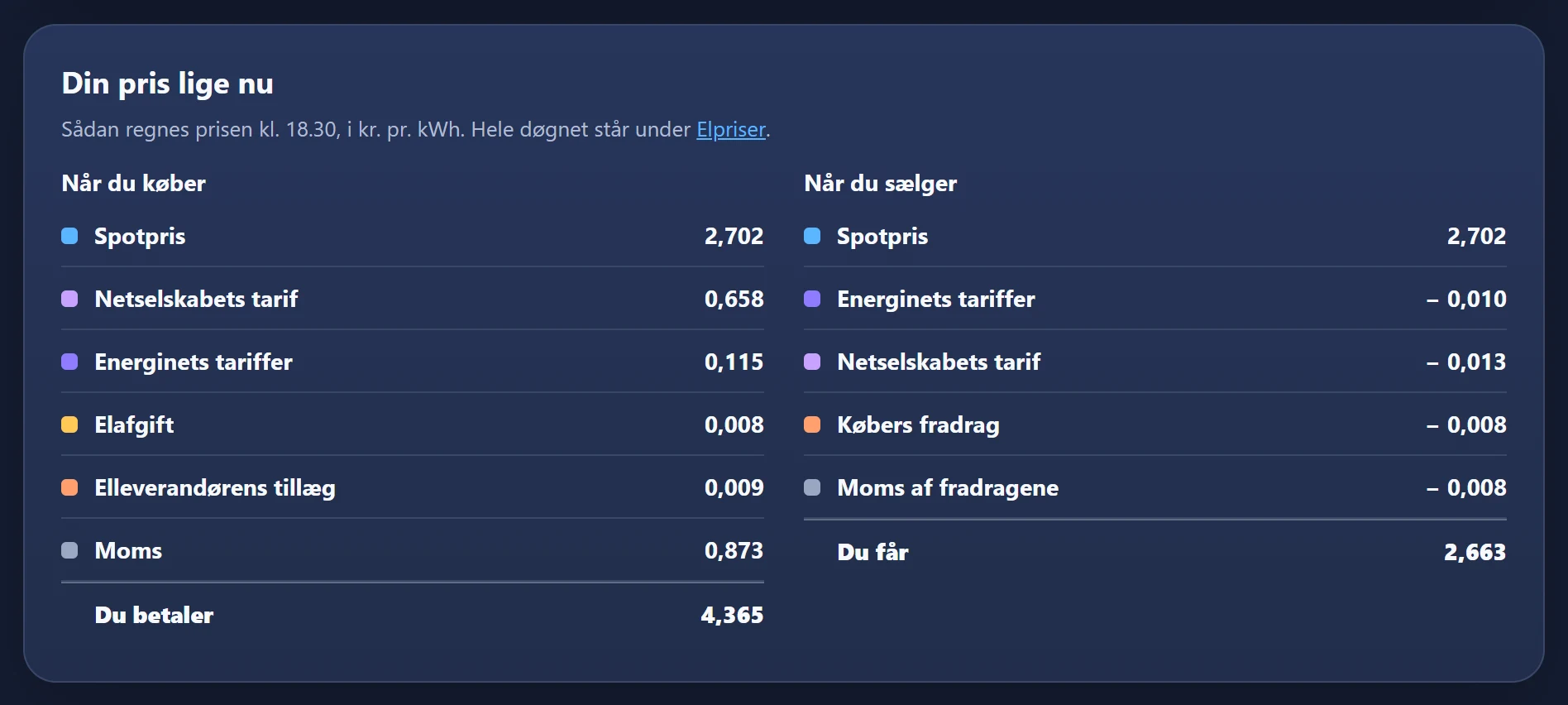
If you change something that moves a price, the plan is redone straight away. A fixed monthly subscription isn't included in the price per kWh.
Home equipment
The household and what uses a lot of power. The consumption forecast calculates with it.
- 1Fill in Household
How many of you live there, and the home's heated floor area (listed in BBR). Below the fields, it says what the household uses per day without heating and electric car.
- 2Choose your equipment under Your equipment
Electric car, Heat pump, Electric heating, Pool or spa and Other. Each choice gets its own card with questions.
- 3Fill in the cards
Electric car: driving per day, consumption per 100 km, the charger's power and when it charges. Heat pump: type, what it heats, and the consumption per year. Electric heating: whether it's the main heating. Pool: power, hours and season. Below each card is an estimate.
- 4Press Save
If there are red fields, correct them first.
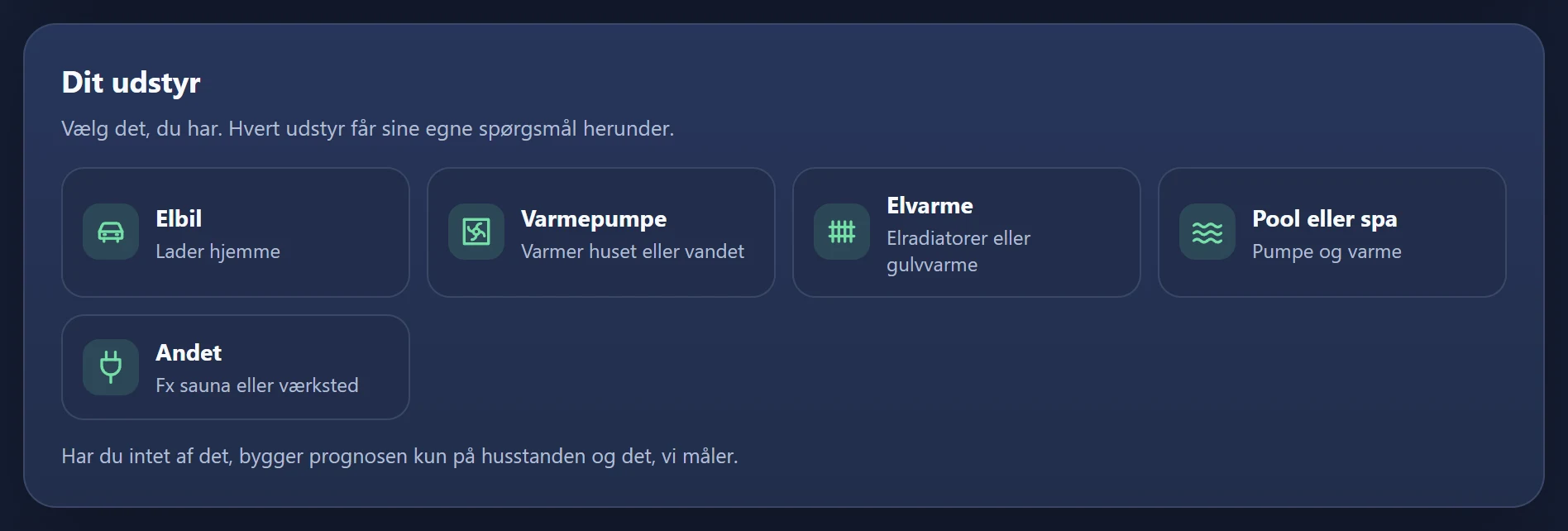
Until we have measured your consumption for a couple of weeks, the consumption forecast is based on what you enter here. After that, it's based on the measurements, but the heat pump and electric heating still follow the weather forecast.
Notifications
What GridZeno notifies you about, and whether it should be by e-mail, push or both.
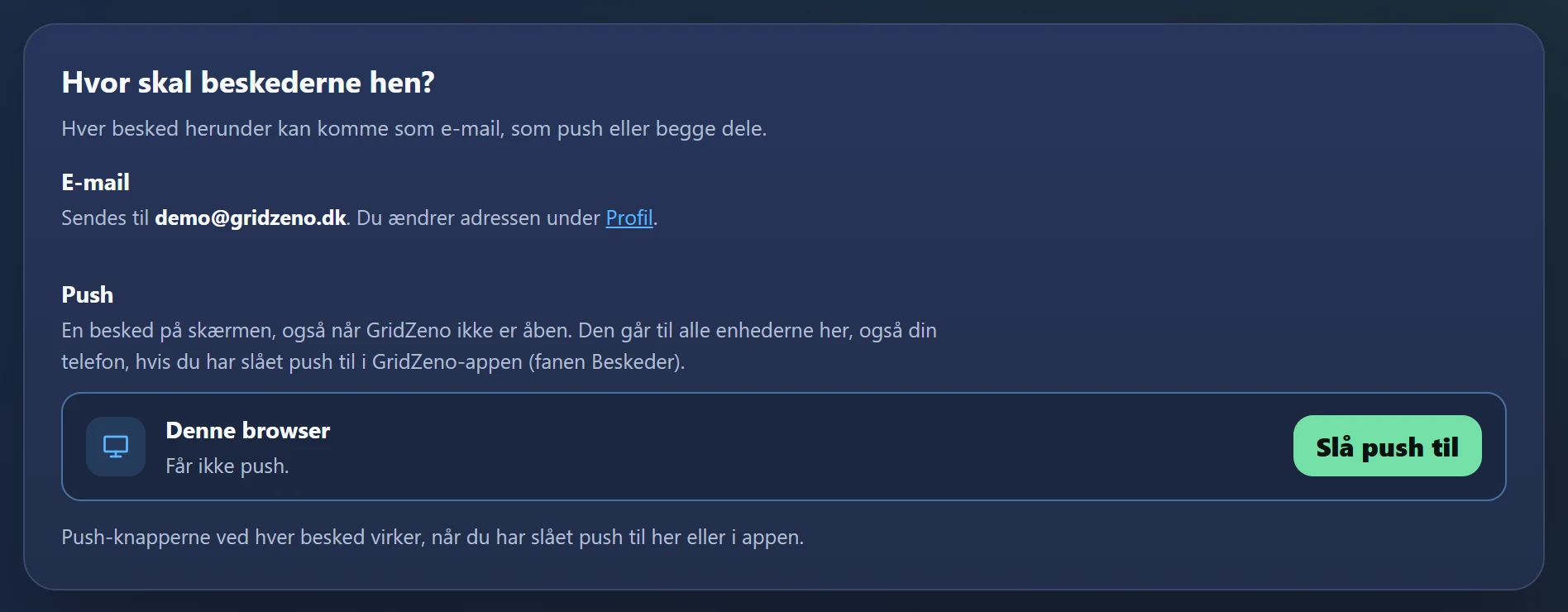
- 1Turn on push in This browser
Press Turn on push, and say yes when the browser asks. Do this on every computer you want notifications on. On the phone, you turn on push in the app's Messages tab.
- 2Press Send a test notification
Then you can see that the notifications get through.
- 3Choose notifications
Each notification has its own switch for E-mail and for Push. The push switches work when at least one device has push turned on.
- 4Set your limits
For The battery is almost empty, you enter the percentage, and for Unusually high consumption, how much above normal. You set the price limits under Automatic, Your price limits.
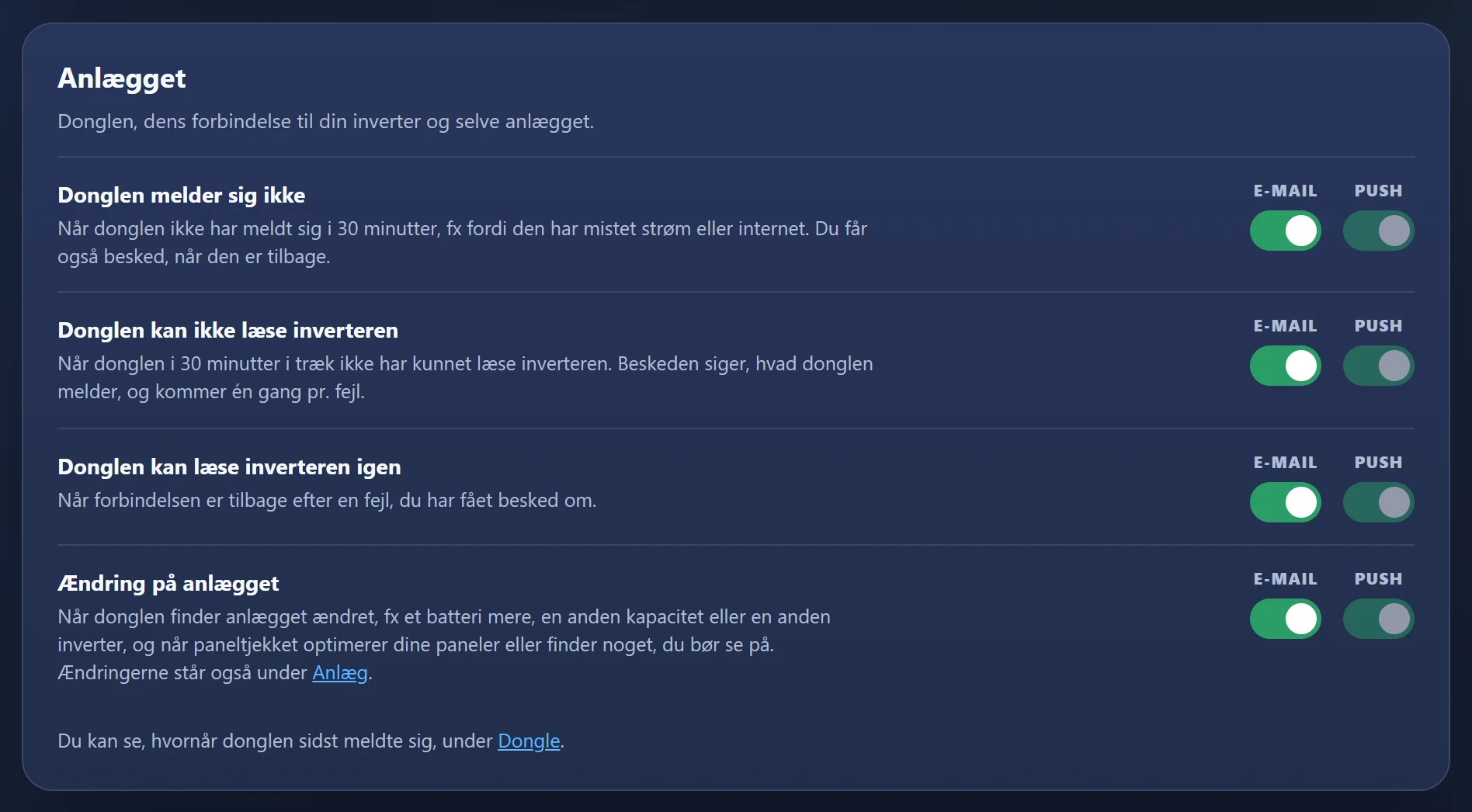
- The system
- The dongle isn't reporting in (after 30 minutes, and again when it's back), The dongle can't read the inverter, The dongle can read the inverter again, and Change to the system. All subscriptions.
- The battery and consumption
- The battery is almost empty, The battery is full, and the solar power isn't sold, and Unusually high consumption. Smart and Pro.
- Tomorrow's electricity prices
- Low selling price tomorrow and High selling price tomorrow, once a day when the prices are out. Smart and Pro.
- The control
- A confirmation when the control is switched to You or GridZeno. Smart and Pro.
- Your subscription
- Problems with the payment (the e-mail always comes) and Your free period ends soon.
Under the list of devices, you can Remove an old computer or phone that should no longer get notifications.
Reports
An e-mail with what happened, and what it was worth.
At the bottom under Notifications, you'll find Report for the system: production, consumption, buying, selling and savings for the period, with graphs. Choose how often it should come, and when. With Light and Smart it comes monthly, and you choose the day and time. With Pro you can also choose daily or weekly, and you get Detailed report with the days with the highest and lowest consumption and production, records and a comparison with the period before. If you choose the 31st, it comes on the last day of the short months.
Ready for cheaper
power?
Check whether your inverter fits, and let the plan charge the battery and sell power in the right quarter hours.