Account and subscription
Under Account in the menu, you correct your details, turn on two-step login, change subscription and card, see your orders and invoices, and download or delete your data.
Your details
You correct your name, username, e-mail and password yourself under Profile.
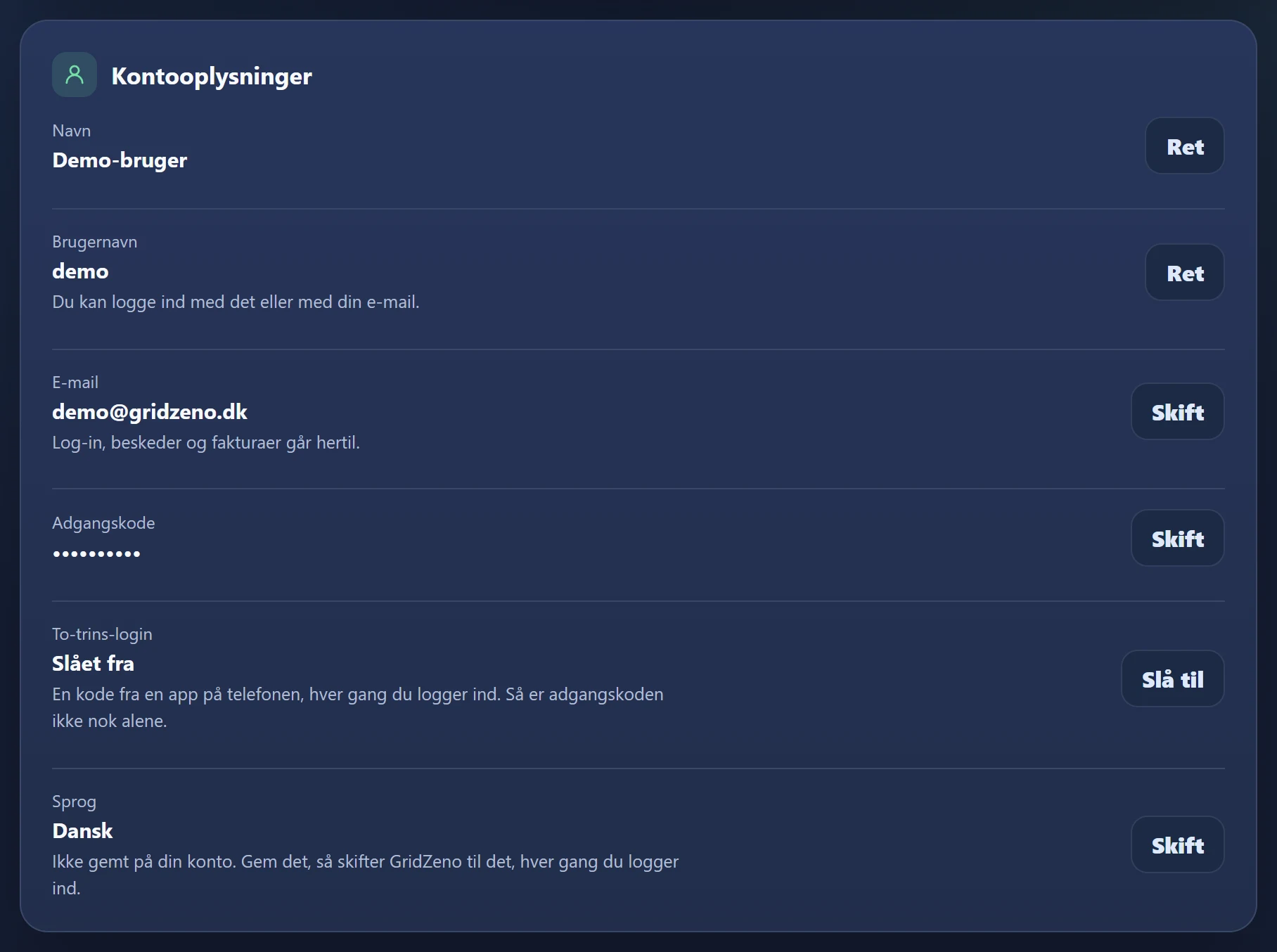
Press Edit or Change next to a row. The field opens in place, and you save with Save or cancel with Cancel or Esc.
- Name
- First name and surname.
- Username
- 3-30 characters: a-z, 0-9, hyphen and underscore. While you type, it says whether it's available. You can log in with it or with your e-mail.
- Password
- Enter the current one (or the dongle's number, if you haven't changed it), and the new one twice. You get a confirmation by e-mail.
Change e-mail
- 1Press Change next to E-mail
- 2Enter the new e-mail and your password
And press Send code.
- 3Find the code in the new inbox
A 5-digit code that's valid for 15 minutes. Until then, the account uses the old e-mail.
- 4Enter the code, and press Confirm
The old address gets an e-mail about the change, and your invoices go to the new one from now on.
If the code didn't arrive, press Send the code again. If you made a typo, press Undo the new e-mail.
Two-step login
A code from an app on your phone every time you log in. Then the password alone isn't enough.
- 1Install an authenticator app
For example Google Authenticator, Microsoft Authenticator or 1Password.
- 2Press Turn on next to Two-step login
Enter your password, and press Continue.
- 3Scan the QR code with the app
If you can't scan, enter the key in the app.
- 4Enter the code from the app
6 digits. Press Turn on two-step login.
- 5Save your backup codes
You get 8 codes that are only shown now. Press Copy the codes or Download as file, tick I have saved the codes, and press Done.
The next time you log in, GridZeno asks for the code from the app after the password. If you have lost your phone, you use a backup code. Each one works once. If there are only a few left, press Edit and Make new backup codes with a code from the app.
Turn it off with Edit and Turn off two-step login, your password and a code. If you have neither the phone nor the backup codes, write to us, and we'll reset it.
Language
Which language GridZeno should write in.
Press Change next to Language, choose the language, and press Save. The page reloads, and GridZeno switches to that language every time you log in. You can choose Danish, English and the languages of the countries GridZeno is available in.
Change subscription
Under Subscription in the menu.
- 1See your plan
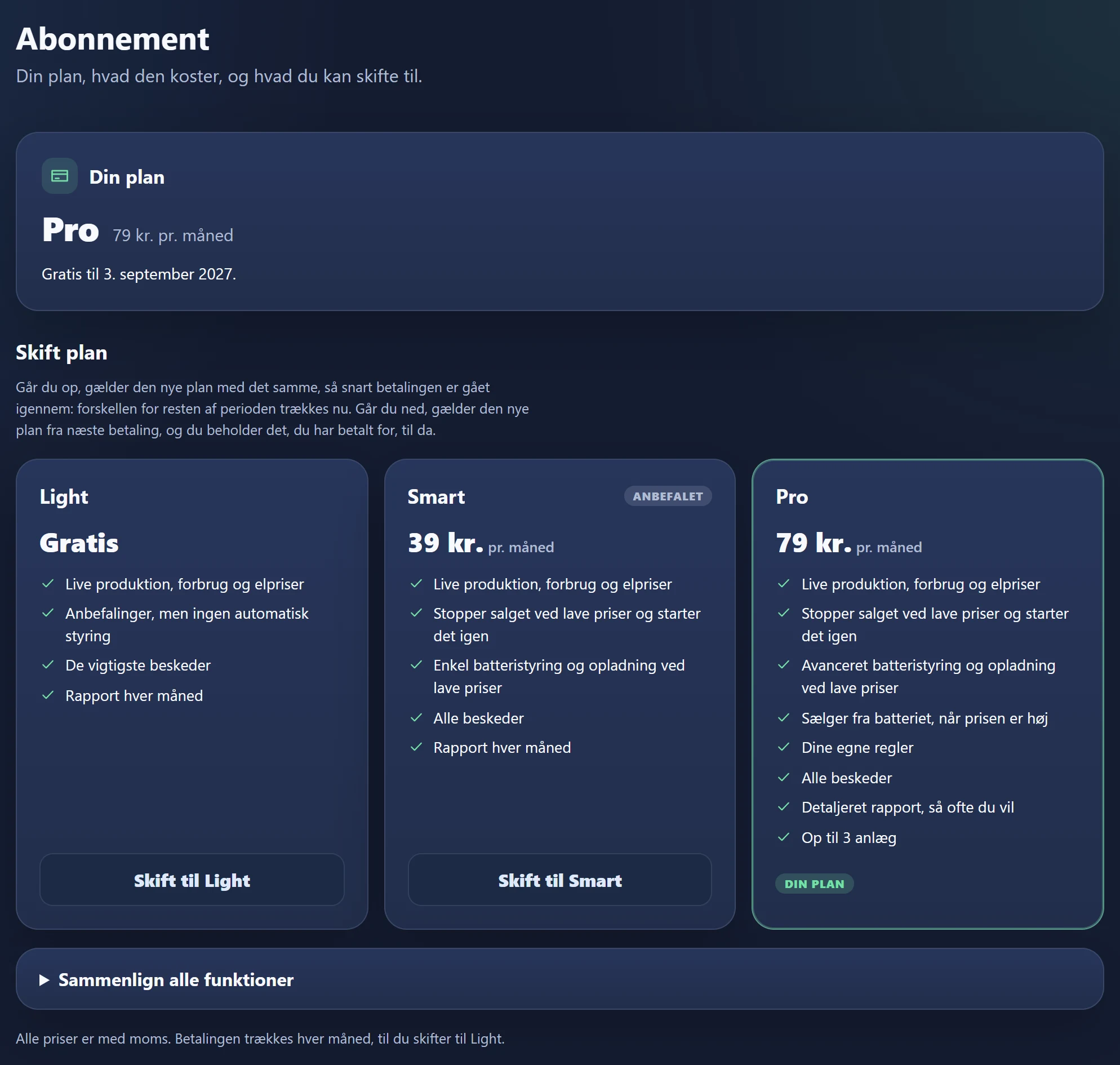
At the top under Your plan, you see the plan, the price and the next payment.
- 2Press Upgrade to … or Switch to …
On the plan you want. Compare all features shows the differences.
- 3Read the dialogue
It shows exactly what will be charged, and when the change takes effect.
- 4Confirm
If you go up, the difference for the rest of the period is charged straight away, and the new plan applies as soon as the payment has gone through. If you go down, the new plan applies from the next payment, and you keep what you have paid for.
- Cancel
- Switch to Light. You keep your plan until the end of the paid month, and after that nothing more is charged.
- Undo a change
- If there's a change that hasn't happened yet, press Keep … or Undo the cancellation.
- Declined card
- It says so in the dialogue. Press Pay at Stripe, or change the card. Your plan is unchanged until the payment has gone through.
If you switch down, GridZeno turns off the features the new plan doesn't have, and if you go to Light, the control is set to Manual. If you switch up from Light, the control is set to Automatic. Between Smart and Pro, the control keeps the setting you've chosen. You can switch to Manual at any time under Automatic.
Payment card and payment
You change the card under Profile or Subscription.
Under Subscription and payment on Profile, you see your card and when it expires. If it expires before the next payment, it's shown in yellow. Press Change card, and enter the new card on Stripe's page.
Your orders
Cancel an order or return the dongle from Profile.
Under Your orders you'll find each order with its status, when it was sent and activated, and the dongle's number.
- 1Press Cancel the order or Return the dongle
Cancel if the order hasn't been sent yet. Return if it has been sent; the text says until which date, and how much you get back.
- 2Optionally write why
The field is optional.
- 3Confirm
If you cancel, the order is cancelled, and the reservation on your card is released. If you return, you get a return label from PostNord as a PDF by e-mail. The subscription stops straight away in both cases.
- 4Send the parcel
Hand it in at PostNord. When we have received it, we pay you back, and the credit note comes by e-mail.
If your account was created with the order, and you cancel before it's sent, the account is deleted too. It says so in the dialogue. Read about cancellation and the right of return.
Payments and invoices
Everything you have paid and got back, with the newest first.
Under Payments and invoices on Profile, you see each order, each month of the subscription and each refund. Press Invoice … or Credit note … to download it as a PDF. If the invoice hasn't been made yet, you can open Receipt instead. 6 are shown at a time; Show all shows the rest.
The first invoice for the subscription also comes by e-mail. The next ones are only here.
Download your data
Everything GridZeno has stored about your system, in one zip file.
- 1Find Download your data on Profile
- 2Choose Period
Everything, Last 12 months or Choose yourself with the first and last day.
- 3Press Download data
You get a zip with the measurements quarter hour by quarter hour and per day as tables that open in Excel, the system's details and settings, and a file that explains them.
Privacy and deleting your account
Whether your data may improve the forecasts, and how to delete your account.
Under Privacy and data on Profile, you choose with the switch Share my data to improve the forecasts, whether your measured production and consumption may be used to train the shared forecast models. If you turn it off, your data is removed from the training again. Read about your energy data.
- 1Press Delete account
At the bottom under Privacy and data.
- 2Enter your password
And press Delete my account.
- 3Done
Your account, your systems and their data are deleted, and a subscription stops straight away. The dongle is released so it can be linked to a new account. You get a confirmation by e-mail.
We keep orders, payments and invoices for 5 years, as the Danish Bookkeeping Act requires. If you have an order that hasn't been sent, or a return in progress, it must be completed first. See what is deleted, and what we keep.
Ready for cheaper
power?
Check whether your inverter fits, and let the plan charge the battery and sell power in the right quarter hours.